
Inside Portal: Compliance Mapping and Custom Reports
Learn how Software Secured Portal connects vulnerabilities to SOC 2, HIPAA, PCI DSS, and ISO 27001 controls and how to customize pentest reports for different audiences.
Finding and fixing vulnerabilities is central to any penetration test. But for teams managing compliance obligations or communicating results across an organization, the work doesn't stop at remediation.
The Software Secured Portal offers two features that address what comes next: compliance mapping, which automatically connects each vulnerability to the specific regulatory controls it affects, and custom reports, which let you control what gets shared and with whom. Both are available on Standard+ Portal packages and above. This article explains how each works, where to find it, and how to use it.
What is compliance mapping in the Portal, and how does it work?
Portal's compliance mapping feature automatically connects identified vulnerabilities to relevant compliance controls across multiple frameworks. Users can see which compliance frameworks each security vulnerability affects and drill down into specific control details.
The mechanism is CWE-based. Each vulnerability carries a Common Weakness Enumeration identifier, which the backend pre-maps to corresponding controls across each supported framework. Portal automatically maps your vulnerabilities to the corresponding compliance controls, streamlining your mitigation approach. No configuration is required from your team.
Supported frameworks:
The testing methodology is aligned to OWASP, NIST, WSTG, and similar standards, and those references appear in the report's external links sections.
Where do I see compliance mapping in the Portal?
Navigate to the Vulnerabilities tab in the Portal. Each vulnerability is matched with its affected compliance frameworks, displayed as framework labels (SOC2, HIPAA, PCI_DSS, ISO27001) in the Compliance column on the right side of the table. A Compliance filter tab at the top of the view lets you narrow the list to only the vulnerabilities relevant to a specific standard. For most Critical and High-severity vulnerabilities, you'll see multiple frameworks tagged at the same time.
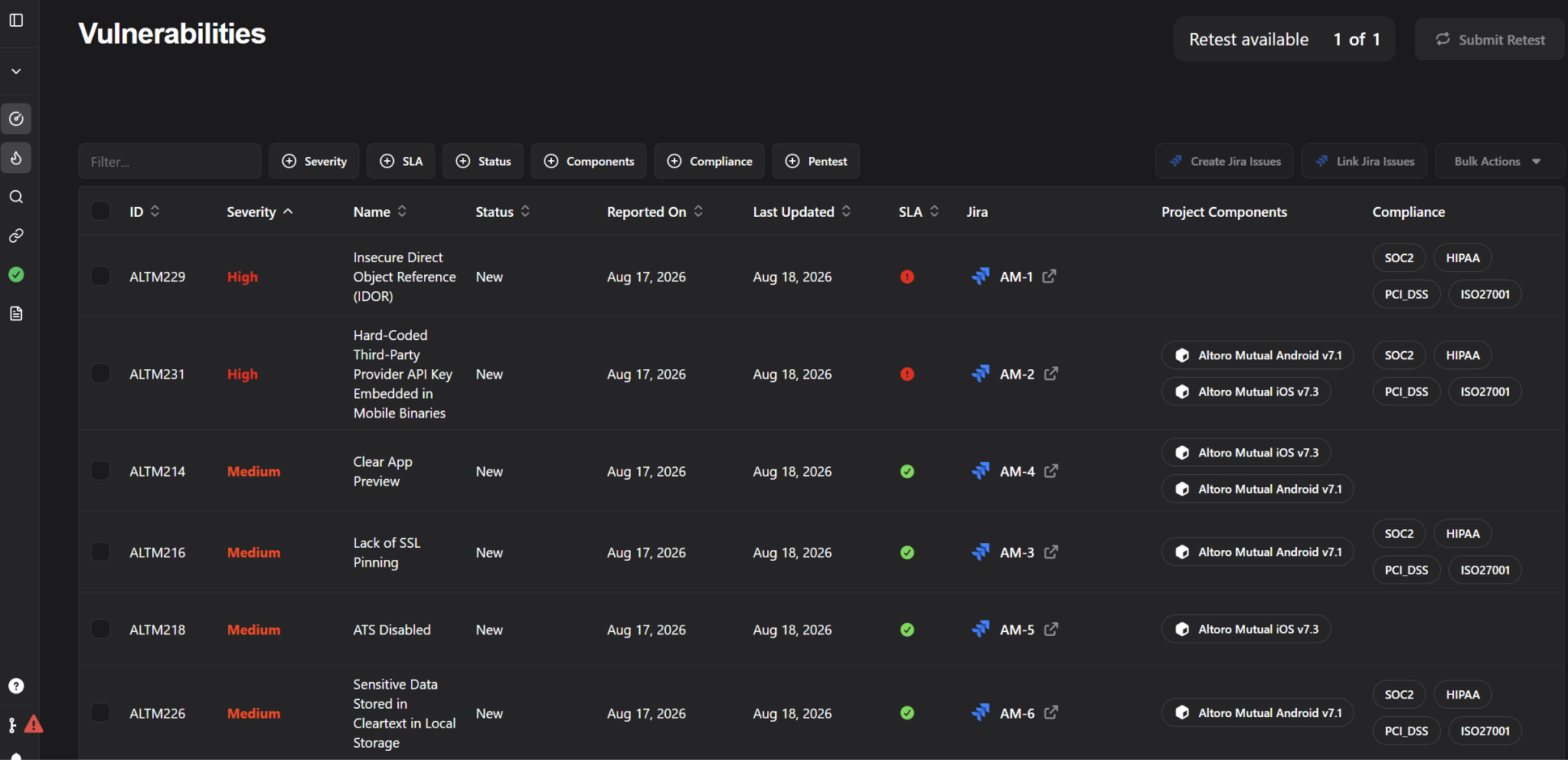
To view the exact compliance control the vulnerability matches, open any individual vulnerability. The Compliance section in the vulnerability details shows specific named controls with full descriptions. For a single vulnerability, this might surface:
- SOC 2: CC6.3 – Access Control; CC6.6 – Boundary Protection
- HIPAA: 45 CFR 164.308(a)(1)(ii)(A) – Risk Analysis (Required); 45 CFR 164.312(a)(1) – Access Control (Technical Safeguard)
- PCI DSS: 7.2 – Access Control
- ISO 27001: A.5.15 – Access control; A.5.18 – Access rights; A.5.23 – Information security for use of cloud services; A.8.26 – Application security requirements; A.8.29 – Security testing in development and acceptance
Each control listing includes the full standard description in context, so you don't need to open the standard document separately.
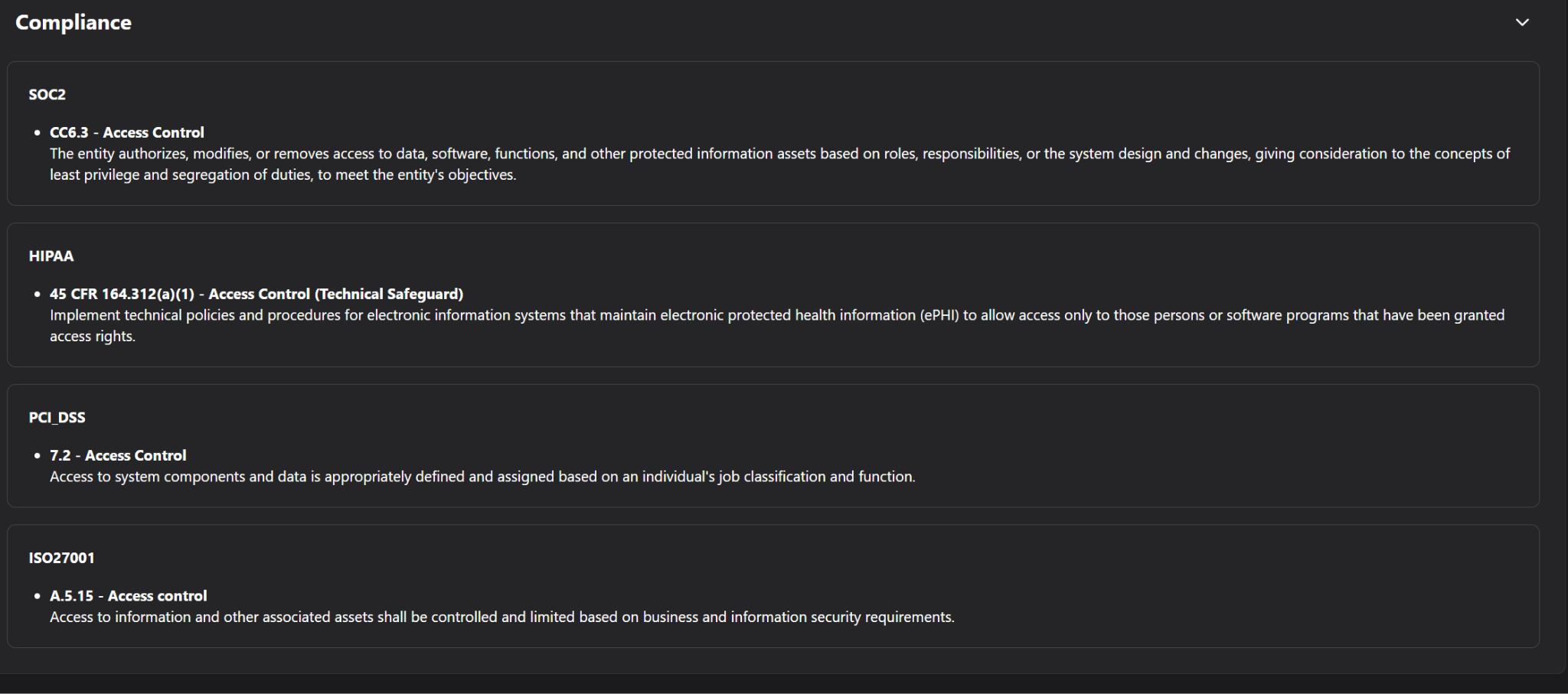
This control-level granularity is what makes the feature practically useful for compliance work. This automation streamlines the vulnerability mitigation process by clearly showing compliance implications.
How should I use compliance mapping when preparing for an audit?
A practical workflow:
- Go to Vulnerabilities and click the Compliance filter tab.
- Select the relevant framework, for example, SOC 2 ahead of a Trust Services Criteria review, or PCI DSS before a QSA assessment.
- Review which vulnerabilities map to that framework and their current status (New, Updated, Closed).
- Open individual vulnerabilities to see the specific controls affected and the full control text.
- Use this view to prioritize remediation and organize your evidence package.
Engineering teams can see which risks threaten which specific control requirements. Compliance teams can track remediation status per control without manually translating a technical report. Auditors receive documentation already structured around the framework they're evaluating.
Does being mapped to a compliance control mean you're compliant?
No. Mapping a vulnerability to a compliance control is not the same as your organization satisfying that control. The mapping shows which controls a vulnerability relates to. Whether the vulnerability has been remediated, whether compensating controls exist, and whether your overall control environment satisfies your auditor's requirements are separate determinations. Portal makes the connection visible and traceable; your team and auditors decide on compliance.
What can I customize in a Software Secured report?
The custom reporting feature allows users to divide projects into components and generate separate reports for each. Users can adjust the level of technical detail in reports to suit different audiences, from executive summaries to detailed security documentation.
Navigate to Reports & Executive Summaries in the Portal sidebar. Each engagement row shows two buttons: Customize Report and Customize Executive Summary. These are independent configurations for two distinct documents.
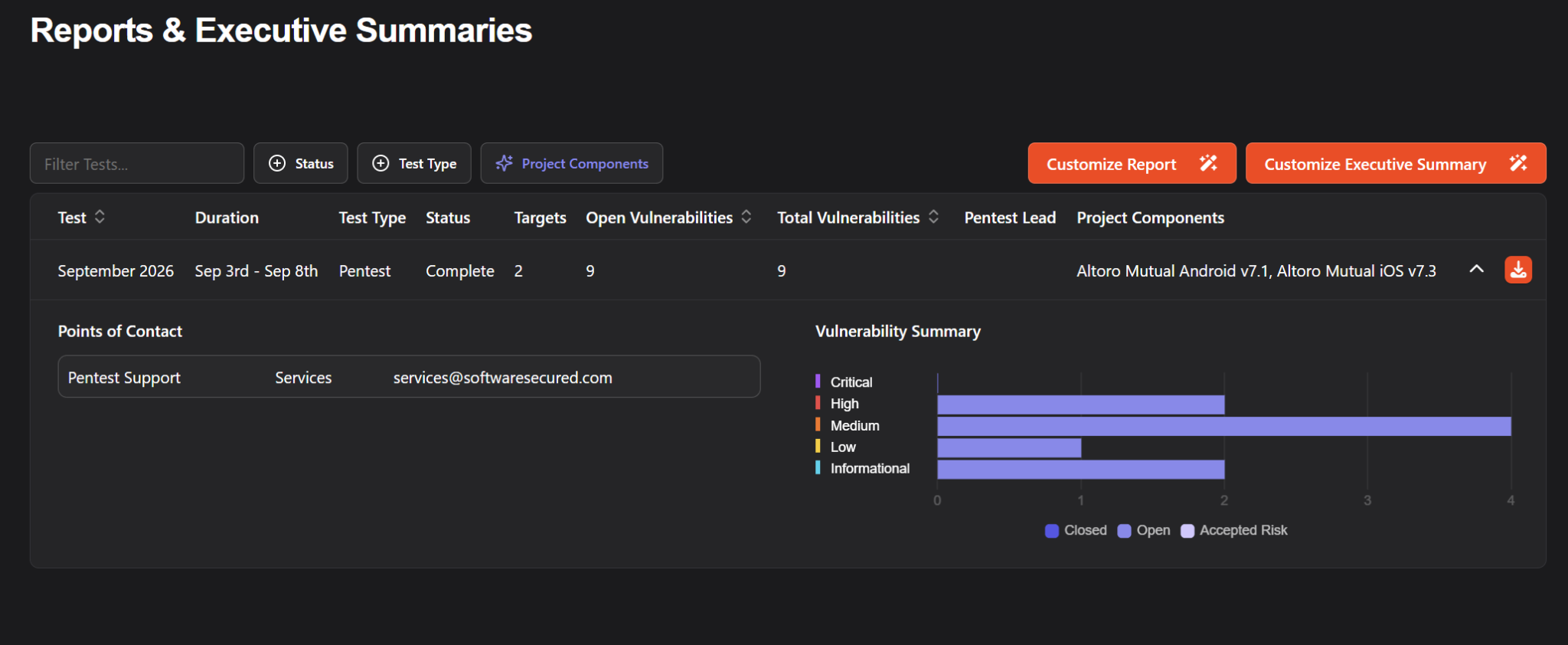
The pentest Executive Summary is an externally facing, condensed version of the report. This document is best suited for distribution to clients, auditors, and other external stakeholders. At download, you can choose between the full executive summary and an abbreviated executive summary.
What sections can I show or hide?
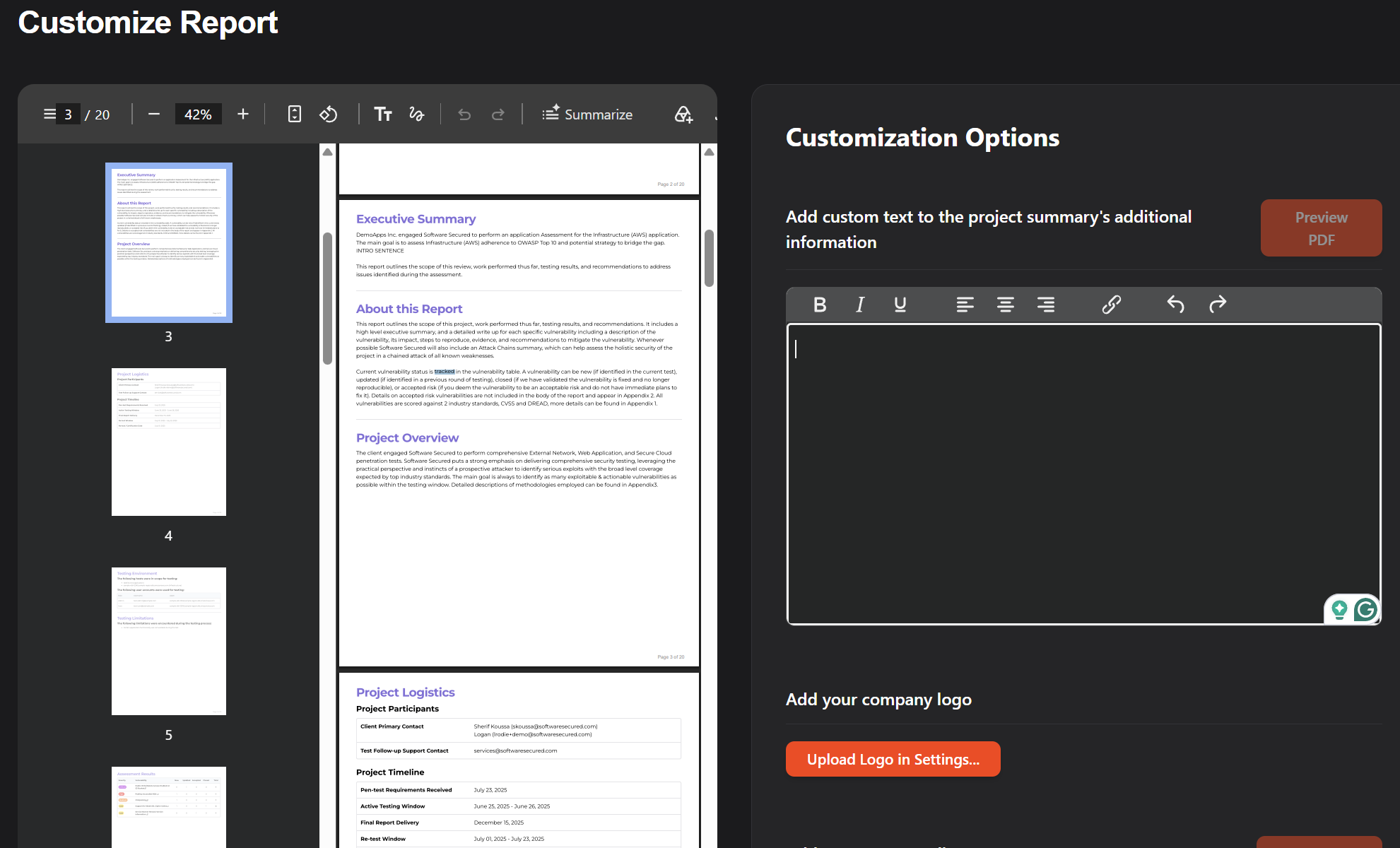
Adjust the technical detail based on your target audience. Click Customize Report to open a side panel with a live PDF preview. Available options include:
Custom text. A rich text editor lets you add content to the report's Additional Information section, labeled in the document as added by your company and not verified by Software Secured. Common uses include your testing cadence, the version tested, planned retest dates, or your security program commitments.
Company logo. Upload a PNG, JPEG, or JPG file (max 5MB). Useful for customers sharing reports externally or publishing them in a Trust Center.
Section visibility. You can toggle individual vulnerability detail sections on or off: Description, Impact, Mitigation, Replication Steps, Test Evidence, References, and Compliance.
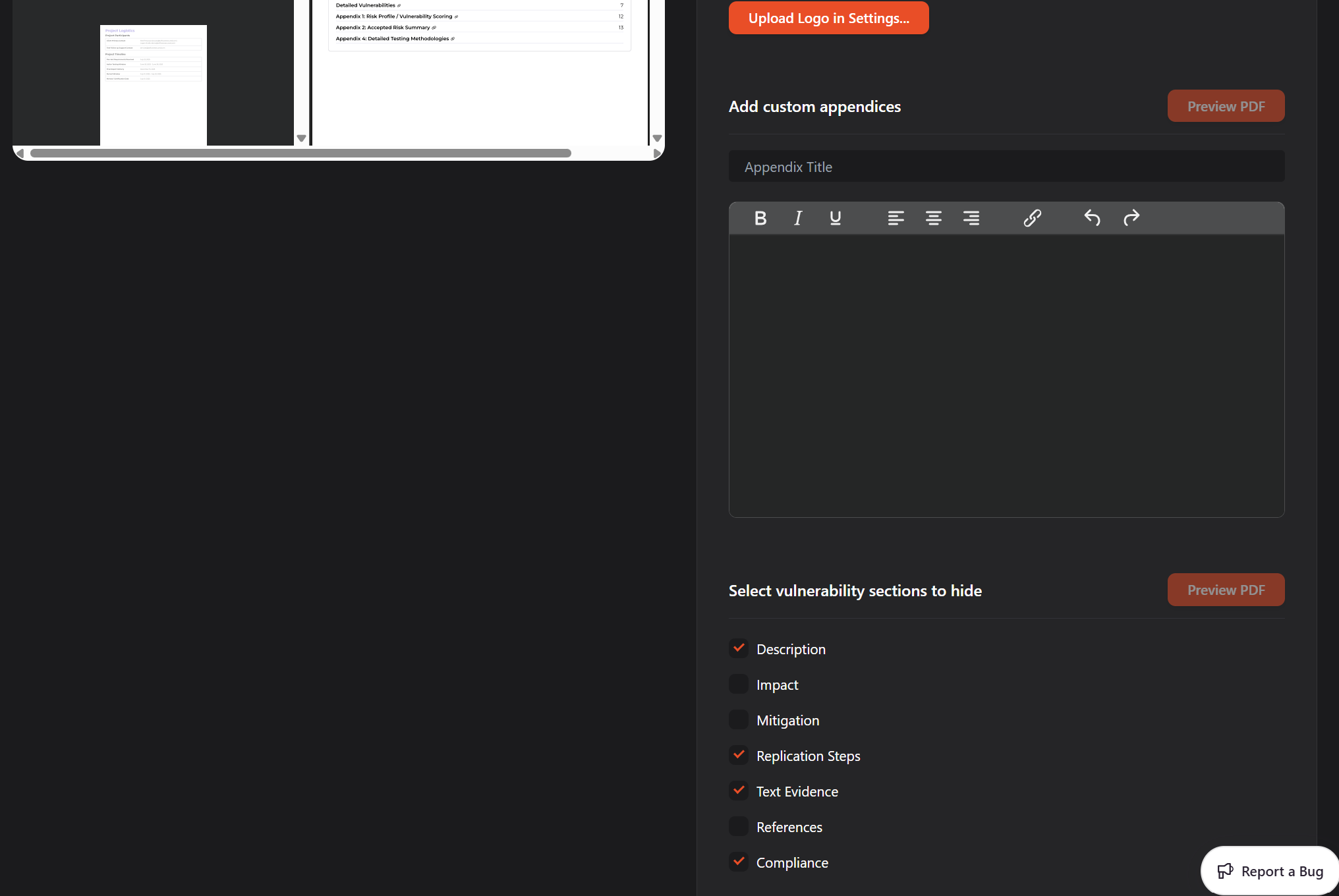
Additional display options: Toggle Show Informational Vulnerabilities to include or exclude low-priority vulnerabilities; toggle Show Full Compliance to surface the control-level compliance mapping in the PDF output.
Use Preview PDF to review the output before saving. You can clear configurations at any time with Clear Customization Options.
How does component-based reporting work?
Before your pentest begins, you can choose whether to split your project into multiple components. Components might represent a Web Application, Mobile, External Network, iOS, Android, or any breakdown agreed during the kickoff call.
On the Reports & Executive Summaries page, you can apply component filters to the most recent pentest. Selecting a component from this filter displays only pentests that contain vulnerabilities related to the selected component and generates a new vulnerability summary. If you apply a component filter, you can download a report or certificate that includes only information about vulnerabilities applicable to the selected component.
This means a single engagement can produce a targeted report for your mobile team, a separate one for your AWS infrastructure team, and a consolidated master report for your security program, without running separate tests.
A note on package tiers: Compliance mapping visibility and the Customize Report panel are available on Standard+ packages and above. Component-specific report downloads require a Premium package.
Which report configuration fits which audience?
Engineering teams. Keep all sections visible. Replication Steps and Test Evidence give developers the context they need to reproduce and fix each vulnerability accurately.
Executive and board stakeholders. Use the abbreviated executive summary at download, and hide Replication Steps and Test Evidence. The result is a risk overview calibrated for decisions, not remediation.
Enterprise customers or prospects during due diligence. Use this feature to streamline the executive summary and control the level of technical details shared. Add custom text explaining your testing cadence and use your company logo to create a report that reflects your security program, not just a third-party deliverable.
Auditors and compliance reviewers. Toggling the "Compliance" section toggle will turn the whole compliance section on or off. Show full compliance toggles how it is displayed:
- Toggled on, it will show the full extended description of each compliance control
- Toggled off, it will show each affected framework and control but hide the extended description
How do compliance mapping and custom reports work together?
These two features follow a natural sequence: Portal's compliance mapping feature automatically connects identified vulnerabilities to relevant compliance controls across multiple frameworks; the Customize Report panel lets you surface that mapping in your PDF output for the specific audience receiving it, and component filters let you scope the report to the right subset of vulnerabilities for each stakeholder.
The combination means your engineering team, compliance manager, auditors, and executive leadership can each receive a version of the results that's genuinely useful to them, without your team having to manually repackage the same data.
Where to start: Log in at app.softwaresecured.com, navigate to Vulnerabilities, and use the Compliance filter to see how your open vulnerabilities map to your most relevant framework today. Then go to Reports & Executive Summaries, click Customize Report, and enable Show Full Compliance before your next download. If you haven't explored either feature yet, that's the fastest way to see what they actually produce.
Questions about the Portal? Reach out at sales@softwaresecured.com.
Ready to get in touch? Get started by booking a consultation now.
About the author

Kaycie Waldman
Demand Generation Manager
Kaycie Waldman works closely with SaaS, cloud, and technology organizations on security, risk, and compliance initiatives that support growth and enterprise readiness. Her work spans strategic content, go-to-market initiatives, and customer trust programs designed to support scale, compliance, and enterprise sales.



.avif)